
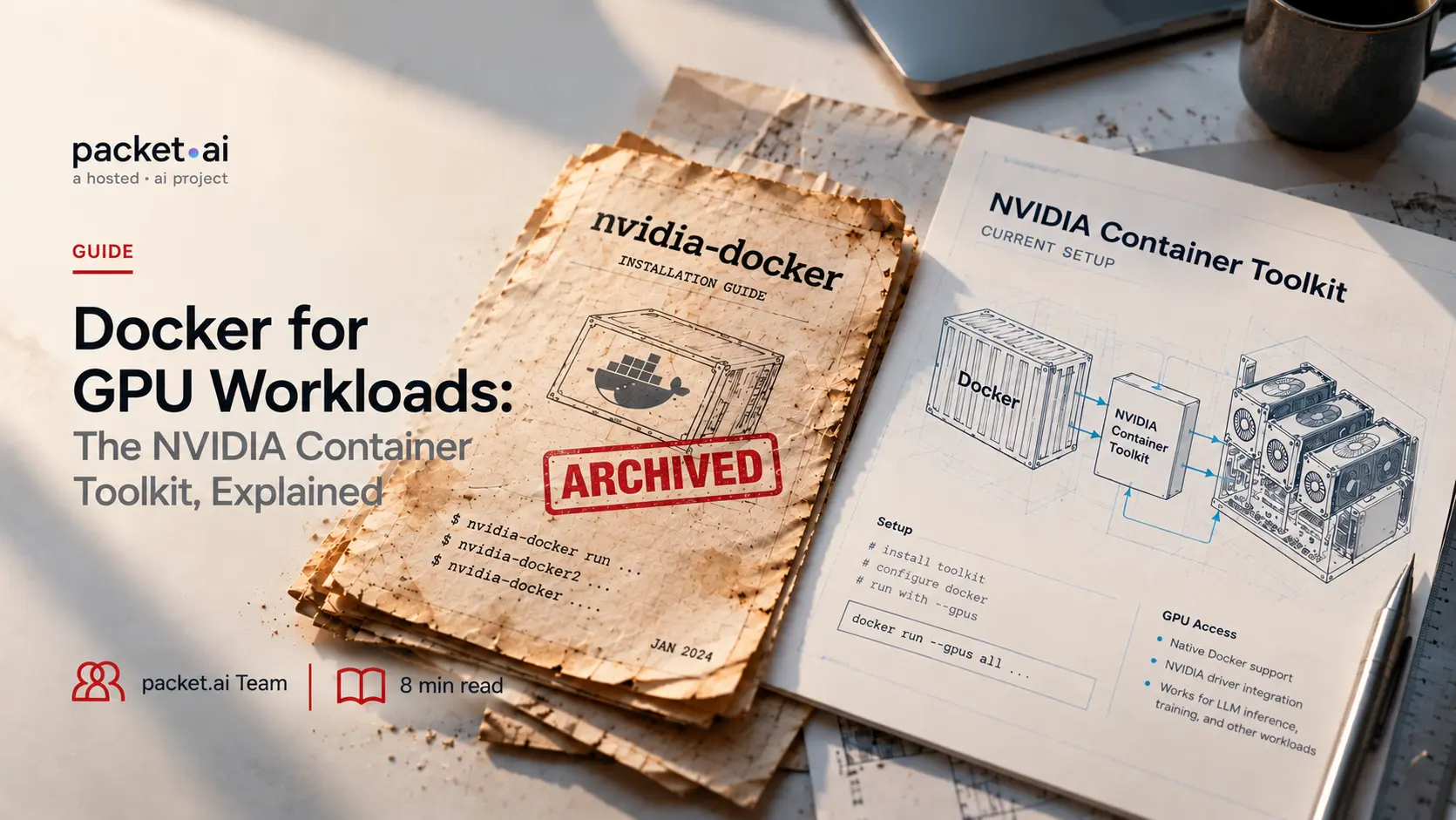
Half the Docker GPU guides online describe a deprecated, archived tool. Here is what is actually current, and the Compose syntax that trips people up.
Half the confusion around running docker nvidia setups comes from outdated instructions still floating around the internet. The tool most guides still call "nvidia-docker" is officially deprecated and archived; the actual current path is the nvidia container toolkit, and the flag has been part of Docker itself since version 19.03. This guide covers what's actually current for nvidia cuda docker and docker nvidia cuda workloads, how GPU access works for any containerized workload, not just LLM inference specifically, and the specific gotchas around Docker Compose that trip up teams moving past a single `docker run` command.
Key takeaways
The original nvidia-docker project, later nvidia-docker2, is officially deprecated. NVIDIA's own GitHub repository for it is archived, with a deprecation notice stating plainly that the tooling has been superseded by the nvidia container toolkit. If a guide or Stack Overflow answer tells you to install nvidia docker2 or run commands through an `nvidia-docker` wrapper, it's describing a setup that's no longer the recommended path, even though some of those instructions technically still work through backward-compatible packages. Anyone searching install nvidia docker today should land on the current toolkit's install guide, not the archived wrapper project.
The current setup is simpler than what it replaced, and it applies the same way whether you're running a docker cuda container, a docker with gpu setup for training, or cuda docker workloads generally. Docker itself gained native GPU support in version 19.03, exposed through the `--gpus` flag on a standard `docker run` command. The nvidia container toolkit's job is to register an nvidia runtime with Docker and generate the device mappings that runtime needs, so a `--gpus` request actually resolves to something Docker knows how to execute, rather than requiring a separate command wrapper around Docker itself.
Containers don't bundle GPU drivers inside the image, and that's a deliberate design choice, not a limitation. The nvidia container toolkit exposes the host machine's existing NVIDIA driver and CUDA libraries to the container at runtime, mounting the necessary driver files and device nodes into the container's namespace when it starts. Current toolkit versions (1.18 and newer) do this primarily through CDI, the Container Device Interface, a standardized specification for describing how a device gets exposed to a container, generated with the `nvidia-ctk cdi generate` command; the toolkit's original runtime-hook mechanism still exists for compatibility but CDI is now the default path. Either way, the image contains your application and its CUDA toolkit version, while the actual GPU driver stays on the host and gets exposed fresh to whatever container requests it, provided that host driver is new enough for the CUDA version the image expects.
This mechanism operates at the container runtime level, below any specific application or framework. Whether the container is running an LLM inference server, a PyTorch training job, a rendering pipeline, or a completely unrelated CUDA application, the GPU access setup is identical: install the toolkit on the host, configure Docker to use the nvidia runtime, and request GPU access when starting a container.
⚡ Verify GPU access before troubleshooting your actual application
Before debugging why a specific application inside a container can't see the GPU, confirm Docker itself can pass one through at all: `docker run --rm --gpus all nvidia/cuda:12.3.0-base-ubuntu22.04 nvidia-smi`. If this bare test fails, the problem is in the toolkit installation or Docker configuration, not your application. If it succeeds and your actual application still can't see the GPU, the problem is specific to that application's own setup, a different and much narrower thing to debug. If the command itself fails with "unknown runtime" or similar, restarting Docker after running `nvidia-ctk runtime configure` is the most common fix, since the daemon needs to reload to pick up the new runtime registration.
On a fresh host, the setup is a handful of commands: add the nvidia container toolkit's package repository, install the toolkit itself, run `nvidia-ctk runtime configure` to register the nvidia runtime with Docker, and restart the Docker daemon for the change to take effect. Note that this command registers the runtime but doesn't automatically make it Docker's default; a `--set-as-default` flag is available if you want every container on the host to get GPU access by default rather than only containers that explicitly request it, which is usually the safer choice for a shared host. Once configured, a docker run gpu command like `docker run --gpus all` and `docker run --gpus 2` (to request a specific number of GPUs) both work using Docker's own native flag, without any separate wrapper command. Pulling a nvidia cuda docker image or any nvidia docker container from a registry works the same way once the host toolkit is configured correctly.
Getting docker gpu access working reliably depends on driver and toolkit version alignment more than most other Docker setups do, since the container needs to match its expected CUDA version against what the host's actual driver supports. A nvidia cuda docker image built against CUDA 12.3 needs a host driver new enough to support that CUDA version; an older host driver can cause the container to fail even when the toolkit itself is configured correctly, so version alignment is worth checking specifically when something that should work doesn't. Nvidia cuda containers pulled from official registries generally document their minimum required host driver version directly in the image tag or description, worth checking before pulling.
Docker Compose GPU support uses a fundamentally different syntax from the `--gpus` flag on a plain `docker run` command, and this is one of the most common points of confusion when moving from a single container to a multi-service Compose setup. Rather than a command-line flag, GPU access in a Compose file is declared under a service's `deploy.resources.reservations.devices` block, specifying `capabilities: [gpu]`, and optionally a specific `device_ids` list to pin a service to particular GPUs rather than all of them. This works in regular, non-Swarm Compose on version 1.28 and newer; older Compose releases either don't support GPU reservations at all or use an earlier, more limited field structure, which is a real source of the "additional properties not allowed" errors people report when this doesn't work as expected.
This distinction matters because copying a working `docker run --gpus all` command directly into a Compose file's `command` or `entrypoint` field simply doesn't work; the flag has no equivalent meaning there, since GPU reservation in Compose is a resource declaration on the service definition itself, not an argument passed at container start. The nvidia container toolkit still needs to be installed and configured on the host exactly as it would for a plain `docker run` setup; Compose doesn't introduce a separate GPU access mechanism, it just declares the same underlying capability differently, and needs a recent enough Compose version to understand that declaration.
The setup covered here applies the same way regardless of what specific GPU workload is running inside the container. A CUDA container running a computer vision pipeline, a training job for a non-LLM model, a scientific computing application, or any other GPU-accelerated process all rely on the identical toolkit-and-runtime foundation. What differs between workloads is everything above that foundation, the specific base image, the framework, the application code, not how the container gets GPU access in the first place.
This is worth being clear about since a meaningful share of "Docker GPU" guidance online is written narrowly around one specific framework or one specific inference engine, which can make the underlying, workload-agnostic setup seem more complicated or more specific than it actually is.
The setup covered in this guide, the nvidia container toolkit, native Docker GPU flags, and Compose's device-reservation syntax, applies the same way on packet.ai's GPU cloud infrastructure as it does on any other host with an NVIDIA GPU attached. Containers built and tested locally against this same toolkit setup run without modification once deployed to cloud GPU capacity, since the underlying mechanism doesn't change based on where the host physically is.
Request a quote to size the right GPU configuration for your containerized workload.
Last reviewed: September 30, 2026. NVIDIA Container Toolkit installation steps, CDI defaults, and package names can change between releases; verify against NVIDIA's current official installation guide for your specific Linux distribution before deploying.
Same models. Same API. Fraction of the cost. Start free — no credit card required.
Start Building →