Nine preinstalled apps, per-minute billing on screen before you commit, and a B200 provisioning in LA-2 while you are still reading the review panel. Here is the whole V2 flow, start to finish.
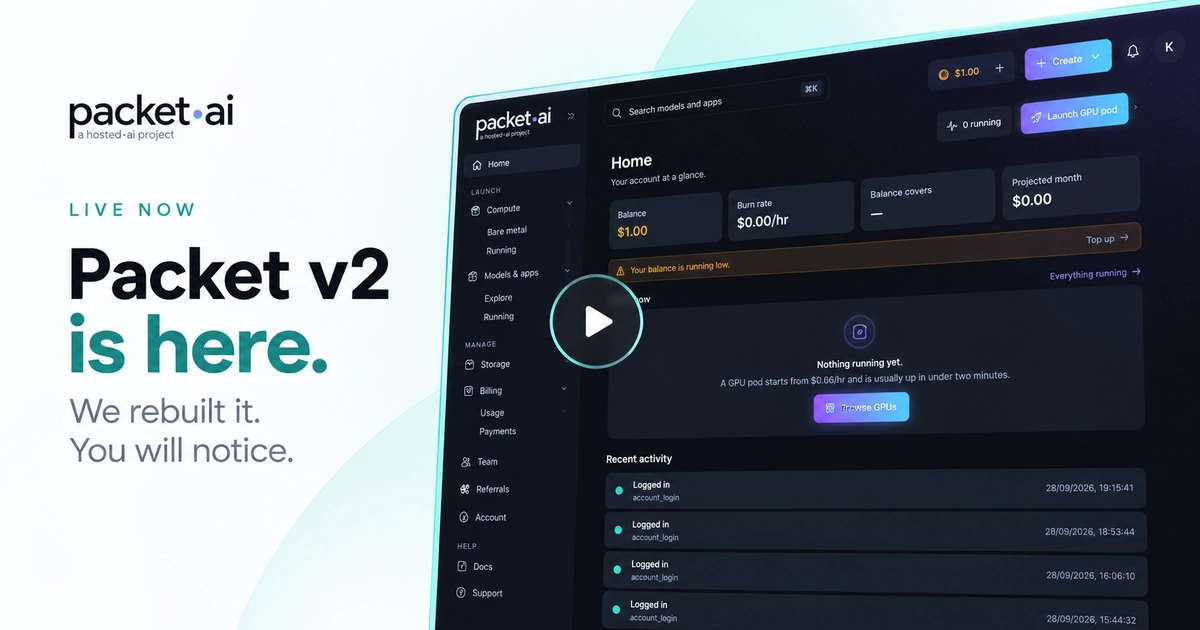
The packet.ai V2 dashboard takes a GPU pod from catalogue to provisioning in four screens, with the workload already chosen for you and the pod usually running in under two minutes.
Key takeaways
Renting a GPU has never been the hard part. Getting from a rented GPU to something actually running on it is where the time goes: SSH in, wrestle CUDA, pip install, discover the driver mismatch, start again. The packet.ai V2 dashboard is a rebuild of that path. The catalogue, the size picker, the app picker and the billing readout now sit on one continuous flow at dash.packet.ai, and the thing you get at the end is not a bare box but a running app.
If you are new to the category, our explainer on what GPU cloud computing is and how it works covers the fundamentals this post assumes.
The old flow treated provisioning and configuration as separate jobs. You picked hardware, waited, then went looking for a way to put software on it. V2 treats them as one job with four decision points, and it pre-answers three of them.
Three things drive the redesign. Defaults are real defaults, not empty fields: region is set to Anywhere unless you need it pinned, and the workload is set to a bare GPU unless you pick an app. Cost is shown before commitment, not after: the review panel carries the hourly rate, the wallet balance and the hours that balance covers. And availability is honest: each configuration reads "1 available" or "None available right now" against the exact setup you selected, rather than advertising a SKU the region cannot fill.
A GPU pod on packet.ai starts at $0.66/hr for an RTX 6000 Pro and is usually running in under two minutes.
The walkthrough below runs the whole path end to end with no cuts: empty dashboard, GPU catalogue, app picker, review panel, launch.

The full V2 deploy flow, from an empty dashboard to a B200 pod provisioning in LA-2.
The recorded run provisions a single dedicated B200 in LA-2 with Jupyter + PyTorch, at $3.75/hr billed per minute.
Pick how it is billed, then a GPU
The GPU pods tab lists every model as a card with VRAM, region and the from rate. An On-demand and Monthly toggle sits under the row, so the price you compare is already the price you will pay. Bare metal and anything currently Running get their own tabs with live counts.
Pick the configuration
With a GPU chosen, a filter narrows the list to the configurations available for it, so you are only looking at setups that GPU actually supports. Each configuration states whether a slot is free right now and carries its own Deploy button, so the availability you are reading applies to the exact setup you are about to launch.
Choose what runs on it
The deploy page opens pre-filled. Region is Anywhere unless you need it pinned, and the workload is a bare GPU by default. Open the app picker and the pod arrives with your stack already installed instead of an empty shell.
Review, then launch
A running Your selection panel ticks off GPU, Config, Region and Running as you go. The review step restates the compute rate, wallet balance, minimum to launch and an optional SSH key field before the Launch GPU button does anything irreversible.
The app picker is the part that changes what a GPU pod is for. Rather than a base image and a long afternoon, each entry is a named stack with a stated install time, running on top of the pod once it boots.
Install times are the estimates shown on each card in the picker, and they run after the pod itself is up. A full catalogue link sits at the bottom of the picker for anything not in the preinstalled nine.
If you already know which stack you want, our guides on deploying and serving LLMs with vLLM, choosing a GPU for ComfyUI and setting up Text Generation WebUI on a cloud GPU cover what to do once the pod is running.
V2 puts the money on screen at every step rather than in a settings page you visit afterwards. Compute is billed per minute, and a month is counted as 730 hours for projection purposes, with taxes excluded and storage volumes billed separately.
Three numbers sit beside the deploy form: the compute rate for the configuration you have selected, your wallet balance, and how many hours that balance covers at that rate. The review step adds a minimum to launch amount and an optional SSH key field before anything starts.
⚡ Note
A slot showing as available is a GPU slot, not a full node reservation. The review panel says so plainly: the advertised slot is confirmed against host CPU, RAM and disk fit at launch. Read that line rather than skipping past it if your job has specific host-side requirements.
The Home view carries the same numbers at account level: balance, burn rate, how long the balance covers and a projected month, above a live panel of what is running and a recent activity feed.
The sidebar splits into three groups. Launch holds Compute, which contains GPU pods, Bare metal and Running, alongside Models and apps, which contains Explore and its own Running list. Manage holds Storage, Billing with Usage and Payments underneath, Team, Referrals and Account. Help holds Docs and Support.
A Create button in the top bar short-circuits the whole tree with three entry points: GPU pod for an on-demand or monthly instance, Bare metal for a whole dedicated server, and App or Model to deploy straight from the catalogue. If you are weighing the first two against each other, our comparison of bare metal versus virtualised GPU performance has the benchmark numbers.
The catalogue shows a from rate per card, with dynamic and dedicated as separate line items. Dynamic shares scheduling capacity and prices lower. Dedicated pins the card to you.
packet.ai B200 192GB HBM3e runs at $3.75/hr dynamic and $6.99/hr dedicated, billed per minute, with no minimum term.
For how those rates compare against hyperscale Blackwell capacity, we broke the maths down in GPU cloud at 75% less than AWS.
Monthly commits take up to 20 percent off the hourly on-demand rate, which is the Monthly side of the toggle in the catalogue. For multi-node work, see packet.ai B200 pricing and browse available clusters. If you would rather not manage a pod at all, packet.ai Token Factory serves the same open-weight models through a pay-per-token API.
Last reviewed: 29 September 2026. Ready to try it? Launch a GPU pod on the V2 dashboard or browse available clusters for multi-node capacity.
Same models. Same API. Fraction of the cost. Start free — no credit card required.
Start Building →